
The Best WordPress Plugins Every Business Website Needs

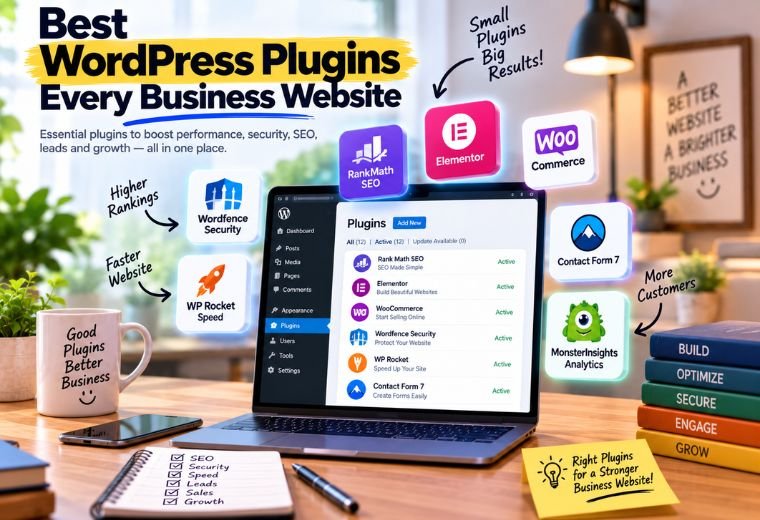
Table of Contents
Your WordPress site works. But it’s probably missing a few tools that turn a plain website into a lead machine.
Most business owners install WordPress, pick a theme, and stop there. The site loads slowly. Nobody fills out the contact form. Google barely notices it. That gap between a website and a working website usually comes down to one thing: plugins.
A plugin is a small add-on that gives your site a new ability. Think of it like an app on your phone. Your phone works without apps. But add a maps app, a payment app, and a camera app, and it does far more. Plugins do the same for WordPress.
The problem is choice. The official WordPress plugin directory holds more than 60,000 free plugins. Pick the wrong ones and you slow your site, open security holes, or waste hours on tools you don’t need.
This guide fixes that. You’ll learn what plugins do, how to choose the right ones, and the best WordPress plugins for SEO, speed, security, forms, and more. No coding knowledge needed.
Quick answer: The best WordPress plugins for most business sites are Rank Math (SEO), WP Rocket or LiteSpeed Cache (speed), Wordfence (security), WPForms (forms), UpdraftPlus (backup), and WooCommerce (online store). Start with these five categories before adding anything else.
What Are WordPress Plugins?
A plugin is a piece of software you add to your WordPress site to give it a new feature.
Break that down. WordPress gives you a working website out of the box. A plugin extends what that website can do — without you writing a single line of code. You install it in a few clicks, switch it on, and the new feature appears.
Here’s a simple example. WordPress does not create an XML sitemap on its own. An XML sitemap is a list of your pages that helps Google find them. Install an SEO plugin, and it builds that sitemap automatically.
Plugins fall into a few common groups:
- SEO plugins help Google understand and rank your site.
- Speed plugins make your pages load faster.
- Security plugins block hackers and spam.
- Form plugins let visitors send you enquiries.
- Backup plugins save a copy of your site in case something breaks.
- E-commerce plugins turn your site into an online store.
The key takeaway: you don’t need dozens of plugins. You need the right ones for what your business actually does.
How to Choose the Best WordPress Plugins
Choosing well matters more than choosing many. Each plugin you add carries a small cost — in speed, in security risk, and in maintenance.
Use these five checks before you install anything.
- Check the active install count. A plugin with 100,000+ active installs has been tested by real users. Fewer than 1,000 installs is a warning sign.
- Read the recent reviews. Look at the one and two-star reviews, not just the praise. They tell you what breaks.
- Check the last update date. A plugin not updated in over a year may not be safe. WordPress changes often, and stale plugins fall behind.
- Confirm compatibility. The plugin page shows which WordPress version it works with. Match it to yours.
- Ask if you truly need it. Every plugin adds weight. If a feature isn’t essential, skip it.
Follow these checks and you avoid the most common WordPress site performance problems before they start.
The Best WordPress Plugins by Category
Here are the must-have WordPress plugins for a business website, grouped by job. Most offer a free version that covers the basics.
Best WordPress SEO Plugin: Rank Math or Yoast SEO
An SEO plugin handles the settings that help you rank on Google — page titles, meta descriptions, sitemaps, and readability checks.
- Rank Math packs many features into its free version, including keyword tracking and schema markup.
- Yoast SEO is the older, most-installed option, known for its simple traffic-light readability system.
Pick one. Never run both — they fight each other and confuse Google. For a deeper look at ranking on Google, our SEO services page explains how the pieces fit together.
Best WordPress Speed Plugins: WP Rocket or LiteSpeed Cache
Slow sites lose visitors. Speed plugins fix that by caching — storing a ready-made copy of your page so it loads instantly for the next visitor.
- WP Rocket is paid but beginner-friendly. It works well with almost any host.
- LiteSpeed Cache is free and powerful, but it needs a LiteSpeed server to shine.
For Indian visitors browsing on mobile data, faster load times mean fewer people leaving before your page opens.
Best WordPress Security Plugins: Wordfence or Sucuri
Every website faces automated attacks, no matter how small your business. WordPress security plugins block them.
- Wordfence includes a firewall and malware scanner in its free version.
- Sucuri Security offers strong monitoring and a clean activity log.
A firewall is a barrier that filters out harmful traffic before it reaches your site. Both plugins give you one without any setup headaches.
Best Form Plugin: WPForms or Contact Form 7
A contact form is often the difference between a visitor and a lead. If people can’t reach you easily, they leave.
- WPForms uses a drag-and-drop builder — no code, just point and click.
- Contact Form 7 is free and lightweight, though it looks plainer.
Add a form to every service page and your homepage. Make it easy for a customer in Dehradun to send an enquiry in ten seconds.
Best Backup Plugin: UpdraftPlus
A backup is a saved copy of your entire site. If a plugin update breaks something or your site gets hacked, a backup lets you restore it in minutes.
UpdraftPlus schedules automatic backups and stores them on Google Drive or Dropbox for free. Set it once and forget it. Without a backup, one bad update can wipe months of work.
Best E-commerce Plugin: WooCommerce
If you sell products or services online, WooCommerce turns your WordPress site into a full store.
It handles product listings, carts, payments, and shipping. It supports Indian payment gateways like Razorpay and works in rupees. For a growing ecommerce business, it’s the standard choice.
Best Image Optimisation Plugin: Smush or ShortPixel
Large images are the number one cause of slow WordPress sites. These plugins compress images automatically so they load faster without looking worse.
- Smush compresses images as you upload them.
- ShortPixel offers stronger compression with a generous free tier.
Combine an image plugin with a caching plugin and your WordPress site performance improves noticeably.
WordPress Plugin Comparison Table
This table sorts the top plugins for WordPress by job, cost, and skill level. Use it as a quick shortlist.
| Category | Recommended Plugin | Free Version | Best For | Skill Level |
| SEO | Rank Math | Yes | Ranking on Google | Beginner |
| Speed | WP Rocket | No | Easy caching | Beginner |
| Speed (free) | LiteSpeed Cache | Yes | LiteSpeed hosting | Intermediate |
| Security | Wordfence | Yes | Firewall + scanning | Beginner |
| Forms | WPForms | Yes | Easy enquiry forms | Beginner |
| Backup | UpdraftPlus | Yes | Automatic backups | Beginner |
| E-commerce | WooCommerce | Yes | Online stores | Intermediate |
| Images | Smush | Yes | Faster page loads | Beginner |
The key takeaway: most businesses can start with the free versions and upgrade only when they need more.
Common WordPress Plugin Mistakes to Avoid
These errors quietly hurt your site. Check yours against each one.
Installing too many plugins. Each plugin adds weight and risk. Keep only what you use. Delete the rest — deactivating alone isn’t enough.
Running two plugins that do the same job. Two SEO plugins or two caching plugins conflict and cause errors. One per job.
Ignoring updates. Outdated plugins are the top way sites get hacked. Turn on automatic updates for trusted plugins.
Choosing plugins on looks alone. A flashy plugin with 200 installs is riskier than a plain one with 500,000. Check the numbers first.
Skipping backups before big changes. Always back up before updating a major plugin. It takes two minutes and saves days of stress.
Never testing after installing. After adding a plugin, open your site on a phone. Check that pages load and forms work.
How NayaLogic Can Help
Picking, installing, and maintaining the right plugins takes time — often several hours a month, every month. Most business owners in Dehradun and across Uttarakhand don’t have those hours to spare.
That’s where NayaLogic comes in. We’re a digital growth agency based in Dehradun, and building fast, secure, well-configured WordPress sites is part of what we do. Our website development work includes choosing the right plugins for your business, setting them up correctly, and keeping them updated.
We don’t stop at the build. We also handle SEO, Google Ads, and Google Business Profile optimisation so customers can actually find you. For businesses that want to reply to enquiries and take bookings around the clock, we build WhatsApp and AI automation that answers customers 24/7 — even when you’re closed.
You don’t need any technical background to work with us. We explain every step in plain language and support both Hindi and English.
Start With the Right Foundation
The best WordPress plugins aren’t about installing the most tools. They’re about picking the right one for each job — SEO, speed, security, forms, and backup — and setting it up properly.
Get those basics right and your website does more than sit there. It loads fast, ranks on Google, stays safe, and turns visitors into enquiries.
Your competitors are already using these tools. The sooner you set yours up, the sooner your site starts working for you.
Want it handled by people who do this every day? Book a free demo with NayaLogic and get your WordPress site built the right way.
Frequently Asked Questions
How many WordPress plugins should I install?
There’s no fixed limit, but quality matters more than quantity. Most business sites run well with 10 to 20 well-chosen plugins. What slows a site is not the number but the quality — a few poorly coded plugins hurt more than many good ones. Install only what you use, keep them updated, and delete anything you’ve switched off.
Are free WordPress plugins safe to use?
Yes, most free WordPress plugins from the official directory are safe. WordPress reviews them before listing. Stick to plugins with high install counts, recent updates, and strong reviews. Avoid plugins from unknown websites offering paid versions for free — these often hide malware. When in doubt, check the last update date and the active install number.
Do plugins slow down my WordPress site?
Some do, some don’t. A caching plugin actually speeds your site up. A poorly built plugin can slow it down. The fix is simple: install only what you need, choose well-reviewed options, and test your speed after adding each one. Google PageSpeed Insights, a free tool, shows you exactly what’s slowing things down.
What are the most essential WordPress plugins for a new site?
Start with five categories: an SEO plugin, a caching plugin, a security plugin, a form plugin, and a backup plugin. Rank Math, LiteSpeed Cache, Wordfence, WPForms, and UpdraftPlus cover all five, and each has a free version. These essential WordPress plugins give any new business site a solid, safe foundation before you add anything else.
Do I need to pay for premium WordPress plugins?
Not to start. The free versions of the plugins in this guide cover what most small businesses need. Paid versions add extras — advanced SEO tracking, priority support, or stronger features. Upgrade only when you hit a clear limit in the free version. Don’t pay for features you won’t use.
Can I install WordPress plugins myself without a developer?
Yes. Installing a plugin takes a few clicks inside your WordPress dashboard. Go to Plugins, click Add New, search for the plugin, then click Install and Activate. Configuration can get trickier for advanced tools. If you’d rather spend your time running your business, an agency like NayaLogic can set everything up for you.
Which WordPress security plugin is best for a small business?
Wordfence is the most popular free option. It includes a firewall and a malware scanner, and it works well without any technical setup. Sucuri Security is another strong choice with good monitoring. Either one protects a small business site from the automated attacks every website faces. Install one, keep it updated, and check its alerts.
How many WordPress plugins should I install?
There’s no fixed limit, but quality matters more than quantity. Most business sites run well with 10 to 20 well-chosen plugins. What slows a site is not the number but the quality — a few poorly coded plugins hurt more than many good ones. Install only what you use, keep them updated, and delete anything you’ve switched off.
Are free WordPress plugins safe to use?
Yes, most free WordPress plugins from the official directory are safe. WordPress reviews them before listing. Stick to plugins with high install counts, recent updates, and strong reviews. Avoid plugins from unknown websites offering paid versions for free — these often hide malware. When in doubt, check the last update date and the active install number.
Do plugins slow down my WordPress site?
Some do, some don’t. A caching plugin actually speeds your site up. A poorly built plugin can slow it down. The fix is simple: install only what you need, choose well-reviewed options, and test your speed after adding each one. Google PageSpeed Insights, a free tool, shows you exactly what’s slowing things down.
What are the most essential WordPress plugins for a new site?
Start with five categories: an SEO plugin, a caching plugin, a security plugin, a form plugin, and a backup plugin. Rank Math, LiteSpeed Cache, Wordfence, WPForms, and UpdraftPlus cover all five, and each has a free version. These essential WordPress plugins give any new business site a solid, safe foundation before you add anything else.
Do I need to pay for premium WordPress plugins?
Not to start. The free versions of the plugins in this guide cover what most small businesses need. Paid versions add extras — advanced SEO tracking, priority support, or stronger features. Upgrade only when you hit a clear limit in the free version. Don’t pay for features you won’t use.
Can I install WordPress plugins myself without a developer?
Yes. Installing a plugin takes a few clicks inside your WordPress dashboard. Go to Plugins, click Add New, search for the plugin, then click Install and Activate. Configuration can get trickier for advanced tools. If you’d rather spend your time running your business, an agency like NayaLogic can set everything up for you.
Which WordPress security plugin is best for a small business?
Wordfence is the most popular free option. It includes a firewall and a malware scanner, and it works well without any technical setup. Sucuri Security is another strong choice with good monitoring. Either one protects a small business site from the automated attacks every website faces. Install one, keep it updated, and check its alerts.