

Elementor Guide: How to Build a WordPress Website Without Code

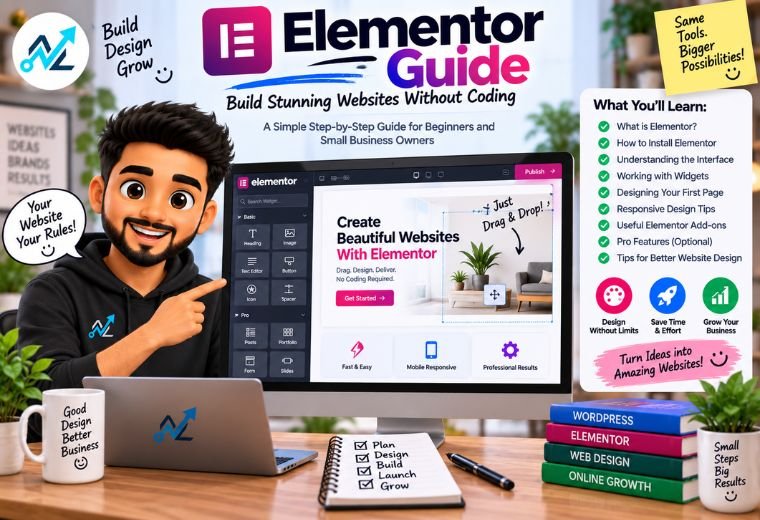
Quick answer: Elementor is a free drag-and-drop page builder for WordPress. You design pages visually by dragging widgets — text, images, buttons, forms — onto a canvas. The free version handles most small business needs. Elementor Pro (from around ₹4,000 per year) adds a theme builder, more widgets, and a popup builder. Start with the free version first.
Most small business owners in India want a good-looking website. Few want to learn code to build one. That gap keeps thousands of businesses stuck with a half-finished site — or no site at all.
That’s the problem Elementor solves. It lets you design a professional WordPress page by dragging and dropping elements, the same way you’d move photos around in a document. No coding. No developer on call. Just you and a screen.
But Elementor has a learning curve. Most beginners open it, feel overwhelmed by the panels, and give up. Others build something messy that loads slowly and breaks on mobile. Each mistake costs you time — and a slow site costs you customers.
This Elementor guide fixes that. You’ll learn what Elementor is, how the free and Pro versions compare, a step-by-step way to build your first page, and the mistakes that trip up beginners. No technical background needed.
Table of Contents
What Is Elementor?
Elementor is a page builder plugin for WordPress.
Break that down. A page builder is a tool that lets you design web pages by dragging and dropping elements instead of writing code. A plugin is an add-on that gives your WordPress site a new ability. So Elementor is an add-on that lets you build pages visually.
Here’s how it works. You open a page in Elementor’s editor. On the left, you see a panel of widgets — small building blocks like a heading, an image, a button, or a contact form. You drag a widget onto the page and it appears instantly. You click it to change the text, colour, size, or spacing. What you see on screen is exactly what your visitor sees. No guessing.
This is called WYSIWYG editing. That stands for “What You See Is What You Get.” You edit the real page, live, not a code file behind it.
Elementor is the most-installed page builder for WordPress, active on millions of sites worldwide. You can confirm its scale and download the free version on the official Elementor website. It works on top of WordPress, so you still own your site and your content fully.
Elementor Free vs Pro: Which Do You Need?
Elementor comes in two versions. The free one covers the basics. Pro adds power tools for businesses that need more.
Here’s the honest comparison.
| Feature | Elementor Free | Elementor Pro |
| Drag-and-drop editor | Yes | Yes |
| Number of widgets | ~40 basic | 100+ advanced |
| Pre-built templates | Limited | Full library |
| Theme builder (header/footer) | No | Yes |
| Form builder | No | Yes |
| Popup builder | No | Yes |
| WooCommerce widgets | No | Yes |
| Price (approx.) | Free | From ₹4,000/year |
| Best for | Simple sites, blogs | Business sites, stores |
The key takeaway: start with Elementor Free. Build a page or two. If you hit a wall — you need a custom contact form, a designed header, or a product store — upgrade to Pro. Don’t pay for features you won’t use yet.
For a small clinic, salon, or coaching centre with a few pages, the free version often does the job. For an online store, Pro’s WooCommerce widgets are worth it.
Step-by-Step Elementor Guide for Beginners
Follow these steps in order. Each one builds on the last. You’ll have a live page by the end.
Step 1: Install Elementor
Log in to your WordPress dashboard. Go to Plugins, then Add New. Search for “Elementor.” Click Install, then Activate. The free version is now ready.
Step 2: Create a new page
Go to Pages, then Add New. Give the page a name, like “Home” or “Services.” Then click the blue Edit with Elementor button. The visual editor opens.
Step 3: Understand the layout
Elementor builds pages using three parts:
- Section: the widest container, like a full row on your page.
- Column: a section splits into columns to place items side by side.
- Widget: the actual content — text, image, button — that sits inside a column.
Think of it like a table. Sections are rows. Columns divide those rows. Widgets fill the cells.
Step 4: Add your first widget
Drag a Heading widget from the left panel onto the page. Click it and type your title. Below it, drag a Text Editor widget and add a short paragraph. You’ve just built content — no code.
Step 5: Style your content
Click any widget to open its settings. Three tabs appear:
- Content: change the words and links.
- Style: change colours, fonts, and sizes.
- Advanced: control spacing and margins.
Pick one brand colour and one or two fonts. Consistency looks professional.
Step 6: Check the mobile view
Most Indian visitors browse on phones. Click the responsive mode icon at the bottom of the panel. It shows how your page looks on mobile and tablet. Fix anything that overlaps or looks cramped.
Step 7: Preview and publish
Click Preview to see the live page. Happy with it? Click the green Publish button. Your page is now online.
That’s the whole loop: add, style, check mobile, publish. Repeat it for every page.
Key Features and Benefits of Elementor
Elementor does more than build pages. Here’s what you actually gain.
Speed of building. A basic page that once took a developer a week takes you an afternoon. You skip the back-and-forth and see changes instantly.
No coding required. You never touch a line of code. Everything is drag, click, and type. This is stated as fact, not a marketing line — the free version genuinely needs zero technical skill.
Responsive by default. Elementor builds for mobile automatically. You can then fine-tune the phone view, which matters when most of your traffic comes from mobile data.
Templates save hours. Pro includes ready-made page designs. Pick one, swap in your text and images, and you’re done. No blank-page panic.
Full design control. You control every colour, font, and space. Your site looks like your brand, not a stock template everyone else uses.
Lower ongoing cost. Once you learn Elementor, small edits cost you nothing. Update your prices or add a page yourself, without paying a developer each time.
Common Elementor Mistakes to Avoid
These errors quietly hurt your site. Check yours against each one.
Overloading pages with widgets. Every animation and fancy element adds weight. A heavy page loads slowly, and slow pages lose visitors. Keep it clean.
Ignoring mobile. Building only on desktop is the top beginner mistake. Always check the mobile view before you publish. Most of your customers are on phones.
Skipping image compression. Large images are the number one cause of slow Elementor sites. Compress every image before you upload it. Aim for under 100 KB where you can.
Using too many fonts and colours. Five fonts and eight colours look messy. Stick to two fonts and two or three brand colours across the whole site.
Not saving before big changes. Elementor auto-saves, but before a major redesign, use the History panel or make a backup. It saves you from losing work.
Forgetting SEO basics. A beautiful page still needs proper titles, headings, and descriptions to rank on Google. Design and search visibility are two different jobs. Good SEO services make sure your Elementor pages actually get found.
How NayaLogic Can Help
Learning Elementor takes time. Building a full site — pages, forms, mobile checks, speed fixes — often takes 15 to 20 hours for a first-timer. Most business owners in Dehradun and across Uttarakhand don’t have those hours to spare.
That’s where NayaLogic comes in. We’re a digital growth agency based in Dehradun, and building fast, clean WordPress sites with Elementor is part of what we do. Our website development work includes the full design, mobile optimisation, image compression, and the SEO setup that helps you rank.
We don’t stop at the build. Once your site is live, we can add WhatsApp and AI automation that replies to enquiries and takes bookings 24/7 — even when you’re closed. Every enquiry gets a reply. Every booking gets confirmed. Automatically. For an online store, we build the full ecommerce setup with Elementor and WooCommerce.
You don’t need any technical background to work with us. We explain every step in plain language and support both Hindi and English.
Frequently Asked Questions
Is Elementor free to use?
Yes. Elementor’s free version is genuinely free and covers most small business needs — drag-and-drop editing, around 40 widgets, and basic templates. You can build a complete multi-page site without paying anything. Elementor Pro, which starts at roughly ₹4,000 per year, adds a theme builder, form builder, popups, and WooCommerce tools. Start free, and upgrade only when you hit a clear limit.
Do I need coding skills to use Elementor?
No. Elementor is built specifically so non-technical people can design websites. You drag widgets onto a page, click to edit them, and see changes live. There’s a short learning curve to understand sections, columns, and widgets, but no coding is involved at any point. If you can move files around on a computer, you can learn Elementor in a few hours of practice.
Does Elementor slow down my WordPress site?
It can, if used carelessly. Heavy pages packed with animations and large uncompressed images load slowly. But a well-built Elementor page performs fine. The fixes are simple: compress images before uploading, avoid overloading pages with widgets, and use a caching plugin. Test your speed with Google PageSpeed Insights, a free tool, and fix what it flags after building.
Is Elementor good for building an online store?
Yes, when paired with WooCommerce and Elementor Pro. Pro includes WooCommerce widgets that let you design product pages, carts, and checkout screens visually. It supports Indian payment gateways like Razorpay and works in rupees. For a small store, this combination gives you full control over how your products look without hiring a developer for every change.
How long does it take to build a site with Elementor?
For a beginner, a simple three to five page business site takes around 15 to 20 hours spread over a week, including learning as you go. Someone experienced builds the same site in a day or two. Using pre-made templates cuts the time further. If you’d rather spend those hours running your business, an agency can build it for you in less time.
Can I use Elementor with any WordPress theme?
Mostly, yes. Elementor works with almost any well-coded WordPress theme. For the smoothest experience, lightweight themes like Hello Elementor, Astra, or GeneratePress are built to pair with it. These themes stay out of Elementor’s way and load fast. Avoid heavy, feature-packed themes, as they can clash with the builder and slow your pages down.
What’s the difference between Elementor and the WordPress block editor?
The WordPress block editor (Gutenberg) is built into WordPress and handles basic layouts well. Elementor is a separate, more powerful page builder with finer design control, more widgets, and live visual editing. For simple blog posts, the block editor is enough. For designed landing pages, service pages, and business sites, Elementor gives you far more control over how everything looks.
Start Building Your Site the Right Way
Elementor puts website design in your hands. No code. No waiting on a developer. Just drag, style, check mobile, and publish.
Get the basics right — clean pages, compressed images, a proper mobile view, and solid SEO — and your site does more than look good. It loads fast, ranks on Google, and turns visitors into enquiries.
Your competitors are already building. The sooner you start, the sooner your site starts working for you.
Want it handled by people who do this every day? Book a free demo with NayaLogic and get your Elementor site built the right way.