WhatsApp Business for Small Businesses: The Complete Guide

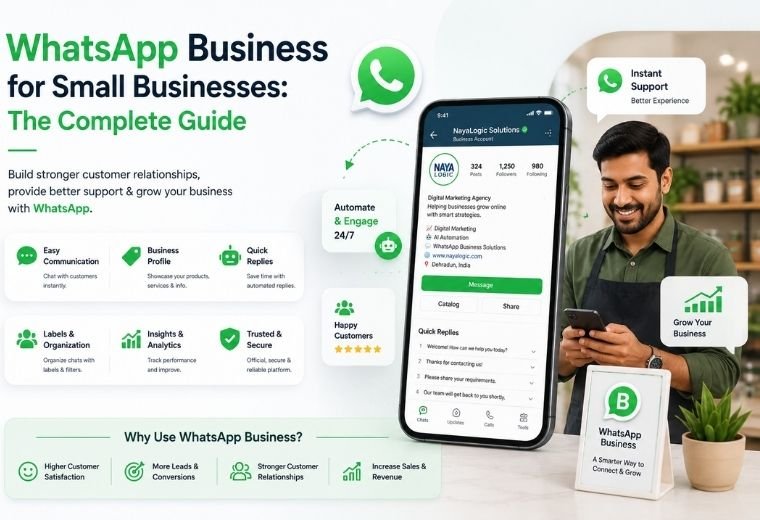
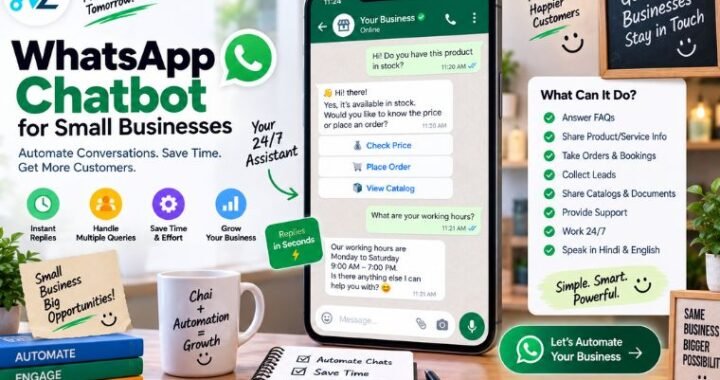
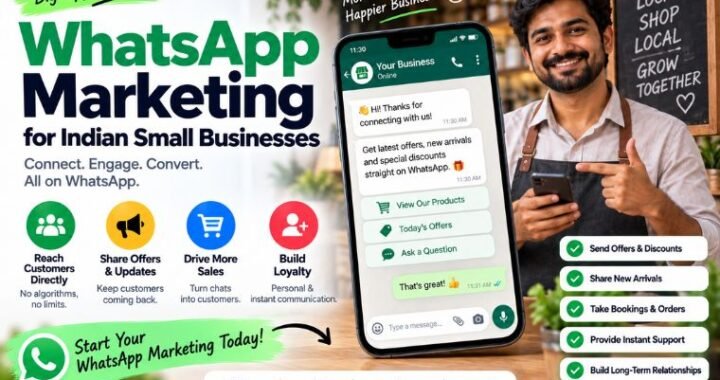
Quick answer: WhatsApp Business is a free app that lets Indian small business owners create a professional profile, set up automated replies, organize customer chats with labels, showcase products in a catalog, and respond faster with quick replies. It’s the starting point before scaling into full WhatsApp Automation for hands-free customer communication.
Table of Contents
Every day, millions of Indian customers send a WhatsApp message instead of making a phone call. They ask about prices, check appointment slots, confirm orders, and follow up on deliveries — all on WhatsApp. For a salon in Dehradun, a kirana store in Pune, or a real estate agent in Hyderabad, this is where business actually happens.
The problem? Most small business owners are still using a personal WhatsApp number. No business profile. No auto-replies. No way to manage 50 conversations at once without missing something important.
WhatsApp Business fixes that. It’s a free app built specifically for small businesses. Set it up once, and you get a professional presence, faster replies, and a cleaner way to manage customer communication — all without needing a tech team.
This guide covers everything: how to set up the app, which features to use first, and how to grow from the free app into full WhatsApp Automation when your business is ready.
What Is WhatsApp Business — and How Is It Different from Regular WhatsApp?
WhatsApp Business is a separate app made by Meta (the company behind WhatsApp and Facebook). It looks almost identical to regular WhatsApp, but it adds tools designed for businesses.
Here’s the difference in plain terms:
| Feature | Regular WhatsApp | WhatsApp Business |
| Business profile (address, hours, website) | ❌ | ✅ |
| Auto-reply when you’re away | ❌ | ✅ |
| Quick replies for common questions | ❌ | ✅ |
| Product catalog | ❌ | ✅ |
| Labels to organize chats | ❌ | ✅ |
| Verified business badge | ❌ | ✅ (with API) |
The app is free. You can use the same phone number you already use — or a separate one. Download it from the Google Play Store or Apple App Store, and you’re ready to start.
How to Set Up WhatsApp Business: Step by Step
Setup takes under 30 minutes. Here’s how to do it:
Step 1 — Download the app. Search “WhatsApp Business” in the Play Store or App Store. Install it.
Step 2 — Register your number. Use your business number if you have one. If you use your personal number, your personal WhatsApp will be replaced. Choose carefully.
Step 3 — Build your Business Profile. Go to Settings → Business Profile. Fill in:
- Business name
- Category (e.g., Restaurant, Salon, Retail)
- Description (one or two lines about what you do)
- Address and business hours
- Website or social media link
Step 4 — Set your profile photo. Use your logo. This is the first thing customers see.
Step 5 — Set up auto-replies. (Covered in the next section.)
Step 6 — Add your catalog. List your products or services so customers can browse without asking. (Also covered below.)
Done. Your business now has a professional WhatsApp presence.
The 5 WhatsApp Business Features That Save the Most Time
1. Business Profile — Look Professional From the First Message
Your profile is your digital visiting card. When a customer taps your name, they see your business hours, address, and website — all in one place. A complete profile builds trust before you’ve even replied.
Tip: Add your exact working hours. Customers will check before messaging. It reduces “are you open?” messages immediately.
2. Away Messages — Reply Even When You’re Closed
Set an Away Message and WhatsApp Business sends it automatically when you’re unavailable.
Example away message for a clinic:
“Thank you for reaching out to [Clinic Name]. We’re currently closed. Our timings are 10 AM – 7 PM, Monday to Saturday. We’ll reply as soon as we open. For emergencies, call [number].”
Go to: Settings → Business Tools → Away Message → toggle on, write your message, set your schedule.
This one feature alone stops customers from feeling ignored when they message after hours.
3. Quick Replies — Answer Common Questions in Two Taps
Quick Replies are saved responses you trigger with a shortcut. Type “/” and your shortcuts appear.
Set these up first:
- /price → your pricing or menu
- /hours → your working hours
- /location → your address with a Google Maps link
- /booking → how to book an appointment
Go to: Settings → Business Tools → Quick Replies → tap “+” to add each one.
A salon owner answering “what are your timings?” 20 times a day saves real time here.
4. Labels — Organize Every Customer Conversation
Labels work like color-coded folders for your chats. Create labels like:
- 🟢 New Lead
- 🔵 Appointment Confirmed
- 🟡 Pending Payment
- 🔴 Follow-up Needed
- ⚫ Order Delivered
Tap and hold any chat → Label Chat → choose your label.
Now you can filter chats by label. No more scrolling through 200 conversations to find who hasn’t paid yet.
5. Catalog — Let Customers Browse Before They Ask
The Catalog is your built-in product or service menu inside WhatsApp. Add items with photos, descriptions, and prices.
Customers can browse your catalog, tap an item, and send you a message directly about it. No website needed.
Go to: Settings → Business Tools → Catalog → Add Item.
A kirana store can list daily staples. A restaurant can list its thali options. A salon can list services with prices. A real estate agent can list active properties.
Once your catalog is live, share it with: [Share Catalog] button in any chat window.
How to Use WhatsApp Business for Customer Communication
How do I use WhatsApp Business to get more leads?
Share your WhatsApp link everywhere:
- Add it to your Instagram bio
- Put it on your Google Business Profile
- Print it as a QR code on your menu, bill, or visiting card
- Add a “Chat on WhatsApp” button to your website
Use NayaLogic’s free WhatsApp Link Generator to create a clickable link that opens a pre-filled message. For example, a restaurant can create a link that opens WhatsApp with the message: “Hi, I’d like to see today’s specials.” One tap, and the customer has started the conversation for you.
How do I collect Google Reviews through WhatsApp?
After a service or delivery, send a follow-up message with a direct Google Review link. Most customers who are happy will leave a review when the process takes under 30 seconds. Timing matters — send the message within a few hours of their visit, while the experience is fresh.
Use NayaLogic’s free Google Review Reply Generator to quickly respond to every review you receive, keeping your Google Business Profile active and professional.
How do I handle too many WhatsApp messages without a team?
This is the limit of the WhatsApp Business app. It handles one phone, one person. When message volume grows — more than 50 to 100 chats a day — you need WhatsApp Automation.
WhatsApp Business App vs. WhatsApp Automation: What’s the Difference?
The WhatsApp Business app is great for getting started. But it has hard limits.
You can only use it on one phone. You can’t automate multi-step replies. You can’t send bulk messages to 500 customers at once. You can’t have two team members handling chats at the same time.
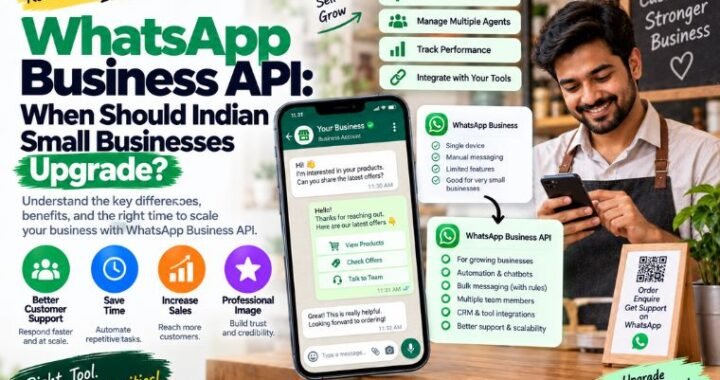
WhatsApp Automation — built on the official WhatsApp Business API — removes those limits.
Here’s what the upgrade looks like in practice:
| Situation | WhatsApp Business App | WhatsApp Automation |
| Customer asks for appointment slot at 11 PM | App sends away message | AI chatbot checks calendar, confirms slot, sends confirmation |
| You want to send a Diwali offer to 1,000 customers | Not possible | Bulk broadcast in one click |
| Two staff members need to reply to chats | One phone only | Multiple agents on one dashboard |
| Customer asks “what’s my order status?” | You reply manually | Bot fetches status, replies automatically |
| Missed leads from website forms | No connection | Lead captured, WhatsApp message sent instantly |
The WhatsApp Business app is your starting point. Automation is where you stop doing the work and let the system do it for you.
To see how automation works for your specific business — whether you run a salon, clinic, restaurant, or retail shop — book a free demo with the NayaLogic team. No setup fee. No commitment. Just a clear look at what’s possible.
WhatsApp Business Tips by Business Type
Salons and spas: Use quick replies for pricing, labels to track appointment status, and away messages with your booking number. Follow up after each visit to collect a Google Review.
Clinics and doctors: Set up away messages with emergency contact details. Use labels like “Appointment Confirmed” and “Prescription Ready.” The industries/clinics page has more on how clinics use WhatsApp to reduce no-shows.
Restaurants and cafes: Upload your full menu as a catalog. Create a WhatsApp link for table reservations with a pre-filled message. Share daily specials via broadcast list.
Kirana and retail stores: Add your top 20 to 30 products in the catalog with prices. Use labels to track pending orders. Share the WhatsApp link on your delivery slips.
Real estate agents: Add active listings to your catalog with photos. Use labels to track hot leads, site-visit bookings, and follow-ups. See more on how NayaLogic works with real estate businesses.
Frequently Asked Questions
Is WhatsApp Business free to use?
Yes. The WhatsApp Business app is completely free to download and use. The WhatsApp Business API (used for automation) has usage-based costs — talk to NayaLogic for details on what this looks like for your business size.
Can I use WhatsApp Business on the same number as my personal WhatsApp?
Yes, but your personal WhatsApp will be replaced on that number. Many business owners use a separate SIM for their business number to keep the two separate.
How many people can manage one WhatsApp Business account?
The app supports only one device and one user. For multi-agent access, you need WhatsApp Automation via the Business API.
What’s the difference between a broadcast list and a group?
A broadcast sends a message to many contacts, but each person receives it as a private message — they don’t see others in the list. A group puts everyone in one shared conversation. For business promotions, broadcasts are better. Contacts must have your number saved to receive broadcasts.
How do I share my WhatsApp Business catalog?
Open any chat, tap the attachment icon (paperclip), and select “Catalog.” You can share the full catalog or individual items. You can also share your catalog link on Instagram, your website, or Google Business Profile.
When should I move from the WhatsApp Business app to WhatsApp Automation?
Move when: you’re missing messages, you can’t reply fast enough, you want to send bulk promotions, or you want a chatbot to handle bookings and FAQs automatically. WhatsApp Automation starts at ₹2,999/month with no setup fee.
Does NayaLogic help with WhatsApp Business setup?
Yes. NayaLogic helps Indian small businesses set up WhatsApp Business, build automation workflows, and connect WhatsApp to lead capture and Google Reviews. Book a free demo to see how it works for your business.
Start With WhatsApp Business. Scale When You’re Ready.
WhatsApp Business costs nothing. Set it up today — business profile, away message, quick replies, labels, catalog. Start responding faster. Start looking more professional. Start capturing leads you were losing before.
When message volume grows and you need automation to handle it, NayaLogic is ready. Automated replies. Bulk broadcasts. AI chatbots that qualify leads and book appointments — 24/7, without you lifting a finger.
Plans start at ₹2,999/month. No setup fee.
Book your free demo and see exactly what WhatsApp can do for your business.